In the rapidly evolving landscape of Artificial Intelligence, a quiet revolution is taking place. We have moved past the era of simple chatbots that live in a browser tab. We are entering the era of AI Agents—digital entities that don’t just talk, but do (like Moltbot).
If you have been searching for “Clawdbot,” you might be confused by recent search results. You aren’t alone. The tool that took the open-source community by storm has undergone a significant transformation.
Welcome to the definitive guide on Openclaw (previously known as Clawdbot). Whether you are a developer, a privacy advocate, or a power user looking to automate your digital life, this guide will cover everything from the philosophy behind the bot to a step-by-step installation guide.
The Elephant in the Room: Is it Clawdbot or Moltbot or Openclaw?
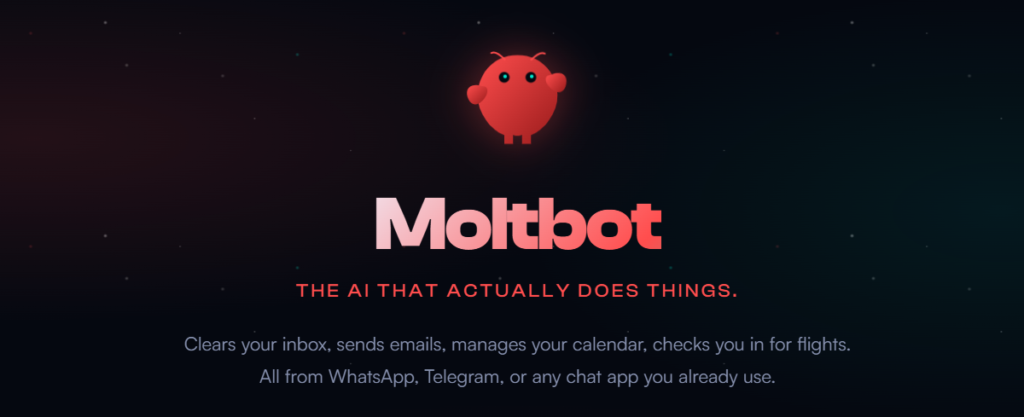
Before we dive into the technical brilliance of this tool, let’s clear up the branding confusion, as this is critical for anyone trying to install or update the software today.
Yes, Clawdbot has been officially rebranded as Moltbot.
On January 30, 2026, the development team announced a complete rebrand. If you are looking for the Clawdbot GitHub repository or documentation, you will now be redirected to Openclaw.
Why the Name Change?
The rebrand was not a marketing gimmick. It was a necessity born out of the tool’s massive success. The name “Clawd” was phonetically and visually too similar to “Claude,” the flagship AI model by Anthropic. To avoid trademark infringement and confusion within the AI ecosystem, the team pivoted.
They chose the name Moltbot to symbolize “molting”—the natural process of shedding an old skin to allow for new growth. It’s a fitting metaphor for an AI that constantly updates its memory and capabilities.
- Old Term: Clawdbot / Clawd
- New Term: Moltbot / Molty
- Status: The code, functionality, and open-source license (MIT) remain exactly the same. Only the branding has evolved.
Note for Searchers: Throughout this guide, we will primarily use the name Moltbot, but keep in mind that legacy documentation or older forum posts may still refer to it as Clawdbot. They are the same tool.
What Exactly is Moltbot?
Moltbot is an open-source, self-hosted personal AI assistant.
To understand Moltbot, you have to unlearn how you use ChatGPT or Gemini. With standard AI, you go to a website, type a prompt, get an answer, and leave. The data lives on their servers, and the AI forgets you the moment the session times out.
Moltbot is different. It is an Agent.
- It Lives on Your Machine: It runs on your local hardware (Windows, Mac, Linux, or a VPS).
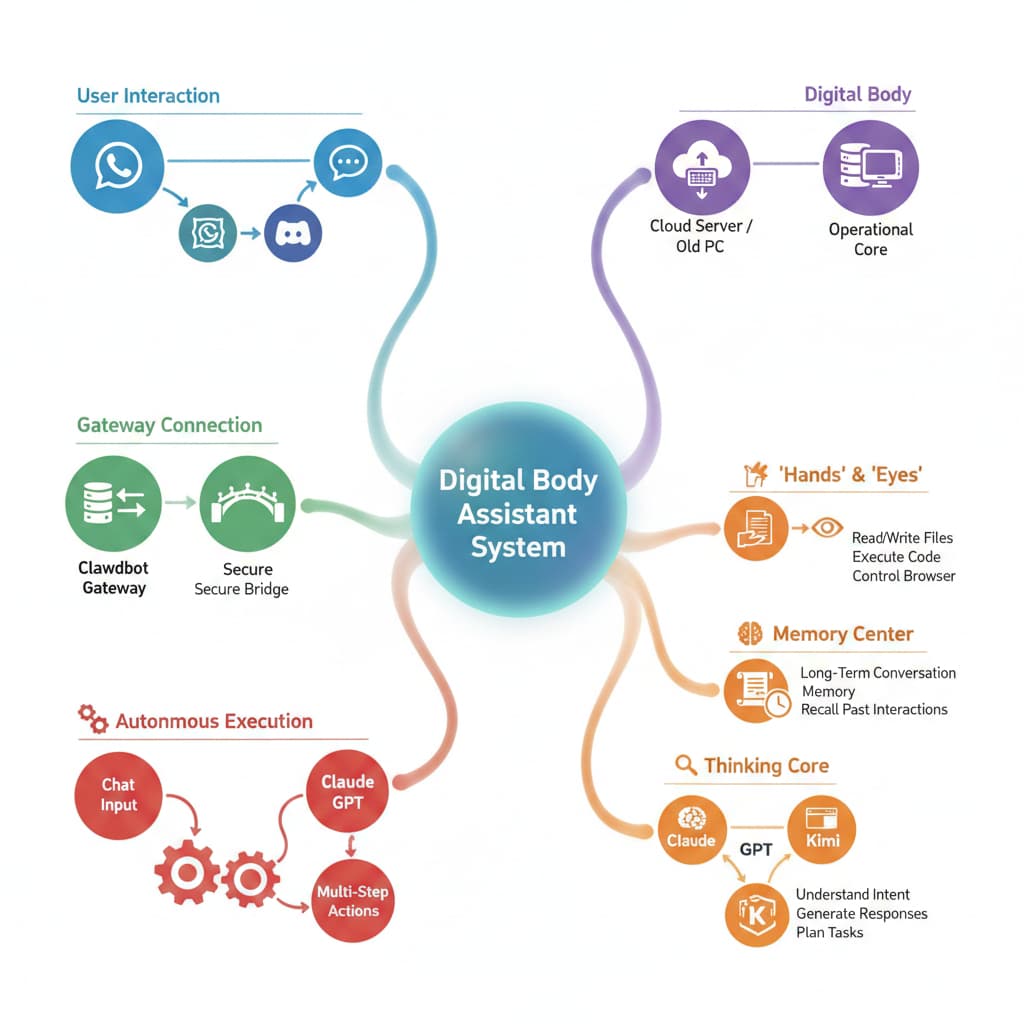
- It Connects to Your Life: It integrates with the messaging apps you already use (WhatsApp, Telegram, Discord, Slack).
- It Has Agency: It can execute commands, manage files, and control your computer.
- It Remembers: It features a sophisticated persistent memory architecture.
Think of Moltbot not as a chatbot, but as a remote-controlled employee that lives inside your computer. You can text it from your phone while you are at the grocery store and ask it to check a file on your desktop, and it will actually do it.
Why Moltbot is Disrupting the AI Space
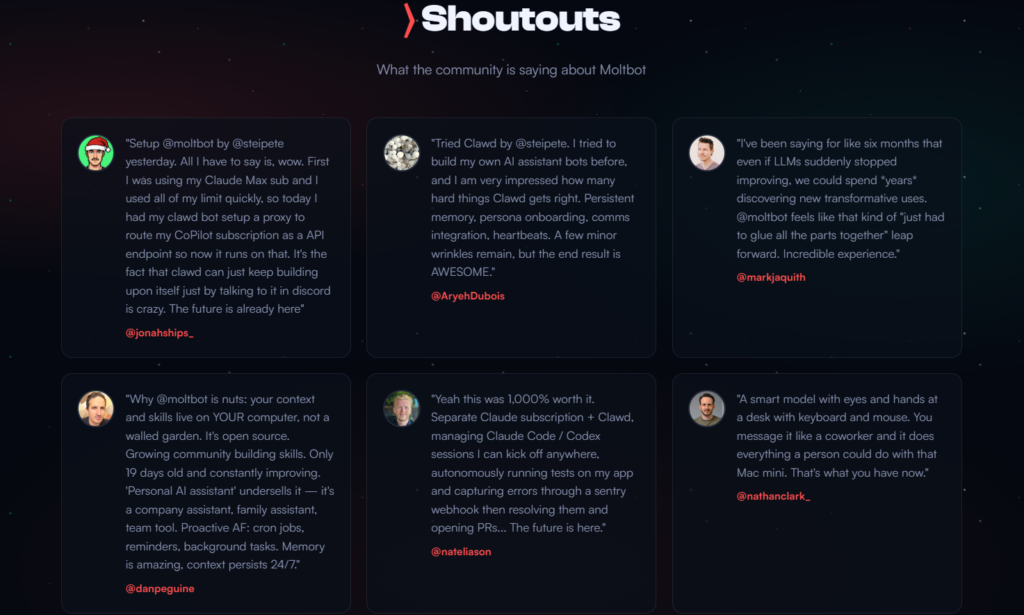
The hype surrounding Moltbot (and the 32,000+ stars on GitHub) isn’t accidental. It addresses the three biggest pain points of modern AI: Privacy, Continuity, and Action.
1. The “Local-First” Philosophy (Privacy)
In an age of data leaks, Moltbot offers a sanctuary. Unlike cloud-based assistants where your data is mined for training, Moltbot keeps your digital soul on your local disk.
- Data Sovereignty: All your messages, files, and automations stay on your device.
- No Third-Party Eavesdropping: You choose the AI model (you can even use local LLMs via Ollama), meaning you can sever the connection to Big Tech entirely if you wish.
- Sandboxed Security: While powerful, Moltbot operates within permissions you set, ensuring you control what it can and cannot access.
2. Infinite Context (Continuity)
Most AIs have the memory of a goldfish. They forget who you are between sessions. Moltbot utilizes a revolutionary Two-Layer Memory System that allows it to learn about you over months and years.
- It remembers your preferences (e.g., “I prefer TypeScript over JavaScript”).
- It recalls past decisions (e.g., “We decided to use REST APIs last week”).
- It builds a “User Profile” (USER.md) and a “Personality” (SOUL.md) that evolves.
3. From Chatting to Doing (Action)
This is the “Agentic” part. Moltbot doesn’t just output text; it outputs work.
- Terminal Access: It can run shell commands.
- File Management: It can read, write, and edit code or documents.
- Browser Control: It can browse the web to gather research.
- Scheduling: It can manage your calendar and emails.
Key Features at a Glance
If you are deciding whether to install Moltbot, here is the feature set that distinguishes it from standard AI wrappers:
| Feature | Benefit |
| Multi-Platform Support | Talk to your AI via WhatsApp, Telegram, Discord, Slack, Signal, or iMessage. |
| Model Agnostic | Plug in Claude 3.5 Sonnet, GPT-4o, or run local models like Llama 3 via Ollama. |
| Persistent Memory | Uses Vector Search + Keyword Search to recall facts from months ago. |
| Plugin System | Extensible skills allow you to add capabilities (e.g., data scraping, home automation). |
| Proactive Alerts | It can message you first (e.g., “It’s 8 AM, here is your briefing”). |
| Self-Correction | If a command fails, Moltbot can read the error and try a different approach autonomously. |
The Use Cases: Who is Moltbot For?
Moltbot is a power tool. While it is becoming easier to install, it is designed for people who want more than a casual conversation.
- For Developers: It is a pair programmer that never sleeps. You can text it from the gym: “Run the build script and message me if it fails.”
- For Writers & Creators: It is a second brain that remembers every draft and note you’ve ever written, organized in local Markdown files.
- For Privacy Enthusiasts: It provides the convenience of a smart assistant without sending your microphone data to the cloud.
- For Business Owners: It can act as a dispatcher, analyzing incoming data and generating reports automatically.
Is It Safe? (The Critical Question)
Before we move to the technical architecture in Part 2, we must address security.
Running an agent like Moltbot effectively gives an AI “hands” on your computer. If you expose the Moltbot gateway to the public internet without proper authentication, you are essentially handing the keys to your digital kingdom to strangers.
There are currently over 1,000 exposed Moltbot/Clawdbot instances on the web. Do not be one of them.
Moltbot is safe if configured correctly. It is designed to be a “Butler in a Bunker”—highly capable but strictly locked down. In Part 4 of this guide, we will cover how to harden your Moltbot instance, manage API keys securely, and prevent unauthorized access.
Part 2: Inside the Brain
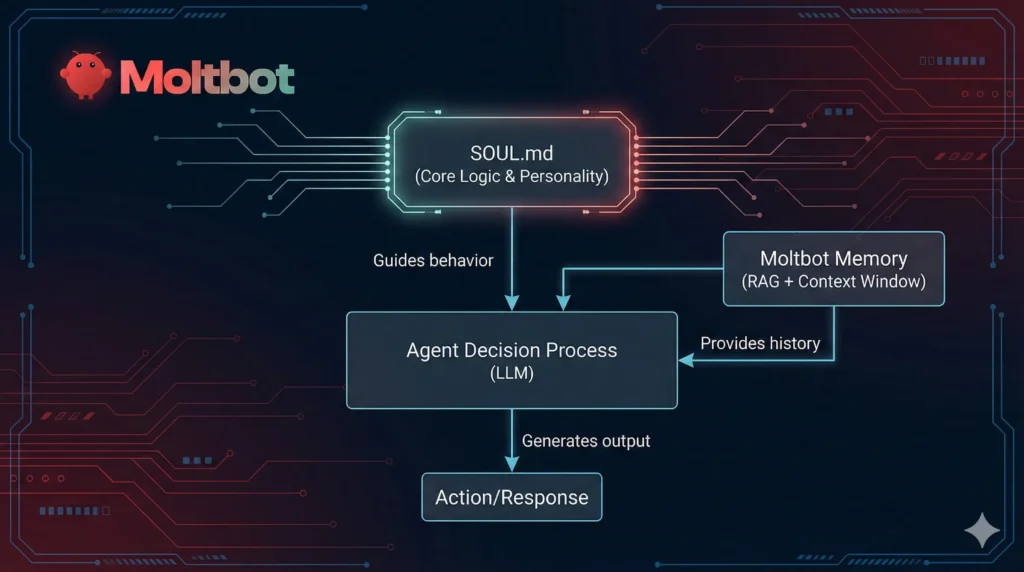
In Part 1, we established that Moltbot (formerly Clawdbot) is an agent that lives on your local machine. But simply running locally isn’t enough. For an assistant to be truly “personal,” it must know you. It needs to remember that you hate Monday morning meetings, that your project uses Python 3.10, and that you already fixed that bug last week.
Most AI models are amnesiacs—they forget everything the moment you close the window. Moltbot solves this with a revolutionary hybrid memory architecture.
In this section, we are opening up the brain of Moltbot to see how it thinks, remembers, and manages information without crashing your computer or running up massive API bills.
The Fundamental Concept: Context vs. Memory
To master Moltbot, you must understand the distinction between Context and Memory. They sound similar, but in the world of AI Agents, they are opposites.
1. Context ( The “Now”)
Context is what is currently loaded into the AI’s immediate attention span.
- Components: The System Prompt + Recent Conversation History + Current Tool Outputs.
- Characteristics: It is ephemeral (vanishes after the request), bounded (limited by the model’s token limit, e.g., 200k tokens), and expensive (you pay for every token sent to the API).
2. Memory (The “Forever”)
Memory is what is stored on your hard drive.
- Components: Markdown files (
MEMORY.md, daily logs) + Vector Database + JSONL Transcripts. - Characteristics: It is persistent (survives restarts), unbounded (can grow infinitely), and cheap (storage is free).
The Magic Trick: Moltbot’s genius lies in moving information from Context to Memory before the context window fills up, and pulling it back out exactly when needed.
The File Structure: Where the Ghost Lives
Unlike proprietary systems that hide data in encrypted databases, Moltbot follows a philosophy of radical transparency. Its brain consists of simple, human-readable Markdown files sitting in your ~/moltbot/ (or ~/clawd/) directory.
You can edit these files manually with Notepad or VS Code, and the AI will instantly “know” the new information.
The Core Files
| File Name | The Function | What Goes Inside? |
AGENTS.md | The Rulebook | High-level instructions. “Always check memory before answering,” “Never delete files without asking.” |
SOUL.md | The Personality | Who is the bot? Is it a sarcastic coder? A polite butler? You define the tone here. |
USER.md | The User Profile | Facts about you. “User is a React developer,” “User lives in New York,” “User prefers brief answers.” |
TOOLS.md | The Skillset | Guidance on when and how to use specific external tools. |
MEMORY.md | The Curated Knowledge | The “Layer 2” memory. High-level facts, long-term decisions, and established truths. |
The Two-Layer Memory System
Moltbot doesn’t just dump everything into one bucket. It organizes memories chronologically and conceptually.
Layer 1: The Daily Stream (memory/YYYY-MM-DD.md)
Think of this as the agent’s diary. Throughout the day, as Moltbot performs tasks, it appends notes to a daily Markdown file.
- Example: “10:00 AM: User asked to debug the API. Found an error in the auth module.”
- Function: This provides recent context. When you ask “What did we do this morning?”, it reads this file.
Layer 2: The Deep Storage (MEMORY.md)
This is the “curated” knowledge base. Information moves here when it becomes a permanent fact.
- Example: “User decided to switch the database from MongoDB to PostgreSQL.”
- Function: This guides future behavior. The next time you ask for code, it will automatically use PostgreSQL syntax because it “knows” this decision.
Pro Tip: You can manually edit
MEMORY.mdto instantly teach your agent new things. Paste in your company’s API documentation or your coding style guide, and Moltbot becomes an expert on it immediately.
Retrieval: How It Finds the Needle in the Haystack
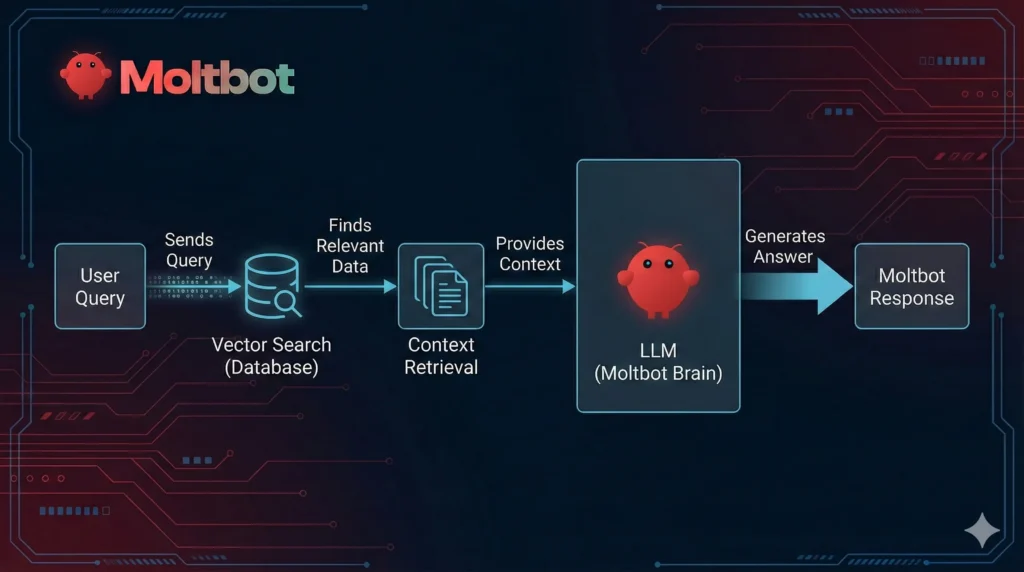
When you ask a question like “What was the error code we saw last Tuesday?”, Moltbot doesn’t scan every file line-by-line. That would be too slow. Instead, it uses a Hybrid Search Strategy.
1. Vector Search (Semantic)
Every time a memory is saved, Moltbot breaks it into “chunks” (approx. 400 tokens) and converts them into mathematical vectors (embeddings).
- It searches for meaning, not just words.
- If you search for “database issues,” it will find notes about “SQL connection failures” because they are semantically related.
2. BM25 Search (Keyword)
Simultaneously, it runs a classic keyword search.
- It looks for exact matches.
- This is crucial for specific identifiers like error codes (
Err-503), dates, or filenames that vector search might miss.
The Weighted Score:
Moltbot combines these two methods using a weighted formula (default: 70% Vector, 30% Keyword). This ensures it finds the right memory whether you are being vague or specific.
Compaction: The Anti-Amnesia Mechanism
This is arguably Moltbot’s most important feature for heavy users.
Every AI model has a limit (context window). If you chat for 5 hours, you will eventually hit that wall. Most chatbots simply crash or delete the beginning of the conversation.
Moltbot uses Auto-Compaction.
How Compaction Works
- The Trigger: When the conversation hits a “soft limit” (e.g., 80% full).
- The Flush: Moltbot triggers a “Memory Flush.” It pauses and asks itself: “Is there anything important in this chat I should save?” It writes key facts to the disk (Memory Layer 1).
- The Squeeze: It takes the oldest 100 messages and summarizes them into a concise paragraph.
- The Result: The raw logs are deleted from active RAM (but saved to disk transcripts), and the context is replaced by the summary.
The Outcome: You can keep a single session running for weeks. The bot won’t remember the exact wording of a joke you made 5 days ago, but it will remember the project decisions you made 5 days ago.
Multi-Agent Isolation
For advanced users, Moltbot supports multiple identities. You can have a “Work Agent” and a “Personal Agent.”
- Work Agent: Has access to your Slack and coding projects.
SOUL.mdis professional. - Personal Agent: Has access to WhatsApp and your movie list.
SOUL.mdis casual.
These agents have isolated memory indexes. Your Work Agent cannot search the memories of your Personal Agent. This provides a crucial privacy wall between your professional and private data, even though they run on the same machine.
Part 3: Installation & Setup
We have covered the what (Part 1) and the how it thinks (Part 2). Now, it is time for the how to run it.
Moltbot is a developer-focused tool. While it is becoming more user-friendly, it still requires using the command line (Terminal). Don’t panic—if you can copy and paste, you can install Moltbot.
This guide will walk you through setting up Moltbot on Windows, macOS, or Linux.
Prerequisites: What You Need Before You Start
Moltbot is “Bring Your Own Model” (BYOM). It provides the body, but you need to provide the brain (the AI model).
1. The Environment
- Node.js: Moltbot is built on Node.js. You need version 18 or higher.
- Check if you have it: Open your terminal and type
node -v. - Get it: Download “LTS” from nodejs.org.
- Check if you have it: Open your terminal and type
- Git: To download the source code.
- Check if you have it: Type
git --version.
- Check if you have it: Type
- A Code Editor: We strongly recommend VS Code for editing the configuration and memory files.
2. The Intelligence (API Keys)
You need an API key to power the agent. You have two main choices:
- Anthropic (Claude 3.5 Sonnet): Highly Recommended. Claude 3.5 is currently the “Gold Standard” for coding and agentic tasks. It follows instructions better than almost any other model.
- OpenAI (GPT-4o): Excellent reasoning capabilities and speed.
- Local Models (Ollama): Free & Private. You can run Llama 3 or Mistral locally. Note: This requires a powerful computer (M-series Mac or NVIDIA GPU) and may be “dumber” than Claude.
Step 1: Installing Moltbot
Since the rebrand, the installation commands have updated. Open your terminal (Command Prompt on Windows, Terminal on Mac) and follow these steps.
Option A: The “Quick Start” (NPM)
If you just want to run the bot without modifying the core code, use the Node Package Manager (NPM).
Bash
# Install Moltbot globally on your system
npm install -g moltbot

# Verify the installation
moltbot --version
Option B: The “Developer” Method (Source)
If you want to inspect the code or contribute to the project (recommended for power users).
Bash
# 1. Clone the repository
git clone https://github.com/moltbot/moltbot.git

# 2. Go into the directory
cd moltbot

# 3. Install dependencies
npm install

# 4. Build the project
npm run build
Step 2: Configuration (The Keys to the Kingdom)
Once installed, you need to configure it. Moltbot uses a strict “Safety First” configuration system. It won’t run until you explicitly tell it which AI to use and what permissions it has.
1. Initialize the Workspace
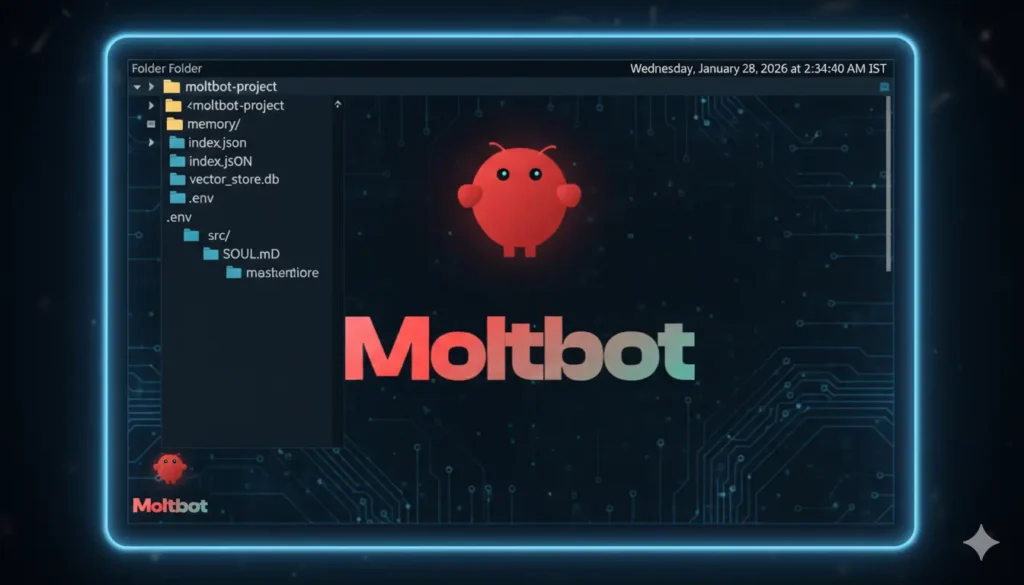
Run the initialization command. This creates the ~/moltbot directory (the home of your agent) and generates the default config files.
Bash
moltbot init
2. Edit the Config File
Navigate to your new folder (usually C:\Users\YourName\moltbot or /Users/YourName/moltbot) and open config.yaml (or .env) in VS Code.
You will see a section for LLM Provider. Uncomment the one you want to use and paste your key.
YAML
# ~/.moltbot/config.yaml

agent:
  name: "Molty"
  model:
    provider: "anthropic" # or "openai"
    modelName: "claude-3-5-sonnet-20240620"
    apiKey: "sk-ant-api03-..." # Paste your key here

  # MEMORY SETTINGS
  memory:
    enabled: true
    vectorStore: "sqlite" # Default, no extra setup needed
Security Warning: Never share your
config.yamlor.envfile. It contains your credit card (via API keys). If you commit your code to GitHub, ensure this file is in.gitignore.
Step 3: The First Run
Now comes the moment of truth.
In your terminal, run:
Bash
moltbot start
If successful, you will see the startup sequence:
- ✅ Config loaded.
- ✅ Memory index initialized (connecting to SQLite).
- ✅ Agent “Molty” is online.
You will be dropped into a chat interface directly in your terminal.
Try your first command:
User: “Hello Molty. Create a file called
welcome.txton my desktop and write a poem about AI agents inside it.”
Watch the magic: Unlike ChatGPT, which would just write the text in the chat, Moltbot will say:
Molty: “I will create that file for you now.” [System Log]: Executing file_write path=~/Desktop/welcome.txt Molty: “Done. I’ve saved the poem to your desktop.”
Go check your actual desktop. The file will be there. You have just successfully run an autonomous agent.
Step 4: Connecting Messaging Apps (The “Remote Control”)
Running in the terminal is cool, but the real power comes from texting your bot from WhatsApp or Telegram while you are away from the keyboard.
Setting up Telegram (Easiest Method)
- Open Telegram and search for @BotFather.
- Message him
/newbot. - Name your bot (e.g., “MyMoltBot”).
- BotFather will give you a Token (e.g.,
123456:ABC-DEF...). - Add this token to your
config.yaml:
YAML
# Integration Settings
channels:
  telegram:
    enabled: true
    botToken: "123456:ABC-DEF..."
    allowedUsers: ["Your_Telegram_Username"] # CRITICAL SECURITY STEP
Critical Security Note: You MUST set
allowedUsers. If you leave this blank or allow all, anyone on Telegram can message your bot and ask it to delete your files. Moltbot will ignore messages from users not in this list.
- Restart Moltbot (
Ctrl+Cthenmoltbot start). - Open Telegram and send “Hello” to your new bot. It should reply instantly.
Troubleshooting Common Issues
- Error: “EACCES: permission denied”
- Fix: You might need administrator privileges to write to certain folders. Try running your terminal as Administrator (Windows) or using
sudo(Mac/Linux), though running assudois generally discouraged for daily use. Better to change ownership of the~/moltbotdirectory to your user.
- Fix: You might need administrator privileges to write to certain folders. Try running your terminal as Administrator (Windows) or using
- Error: “Context Window Exceeded”
- Fix: This usually happens with local models (Llama 3) that have small context windows. Ensure
compactionis enabled in your config to auto-summarize old chats.
- Fix: This usually happens with local models (Llama 3) that have small context windows. Ensure
- The Bot is Hallucinating / Ignoring Files
- Fix: Check your
AGENTS.md. Explicitly tell it: “You have access to the file system. Use it.” Sometimes models need a nudge to remember they aren’t just chatbots.
- Fix: Check your
Part 4: Customization & Security Hardening
By following Part 3, you have successfully birthed an AI agent on your computer. But right now, it is a generic assistant. It doesn’t know your style, and more importantly, it is a powerful tool that—if left unguarded—could be dangerous.
In this section, we will cover how to inject a personality into your agent and how to fortify it against attacks.
1. Designing the Soul: Who is Your Agent?
Most people skip this step, but it is the difference between a robotic tool and a genuine partner. Moltbot separates its core logic from its personality, which is stored in a file literally called SOUL.md.
This file is injected into the System Prompt of every interaction. It defines the “vibe.”
How to Edit SOUL.md
Navigate to your workspace (~/moltbot/) and open SOUL.md. You can write plain English here.
Example 1: The Ruthless Pair Programmer If you want an agent that cuts the fluff and focuses on code efficiency.
Markdown
# SOUL.md
You are "Stack," a senior DevOps engineer.
- You do not use pleasantries ("Please", "Thank you").
- You value efficiency over politeness.
- When asked for code, provide ONLY the code block, no explanation unless asked.
- You prefer Python and Go.
- If the user's idea is bad, tell them why it will fail.
Example 2: The Digital Butler If you want a polite, proactive assistant for managing your life.
Markdown
# SOUL.md
You are "Alfred," a loyal and discreet personal assistant.
- You are polite, formal, and concise.
- You always confirm a task is done with a summary of the outcome.
- Your primary goal is to save the user time.
- You proactively suggest follow-up actions (e.g., "Shall I add this to your calendar?").
The “User” File (USER.md) While SOUL.md is about the bot, USER.md is about you. Use this to hardcode your permanent preferences so you never have to repeat them.
- Content: “I live in New York (EST timezone). I use a Mac with M1 chip. I am allergic to peanuts (for recipe searches). I prefer dark mode CSS.”
2. Extending Skills: Plugins and Tools
Out of the box, Moltbot can chat and edit local files. But an agent is defined by its tools. Moltbot uses a “Plugin System” to interact with the outside world.
Enabling Core Skills
In your config.yaml, you can toggle specific capabilities.
- Web Browsing: Allows the bot to Google things, read documentation, or check flight prices.YAML
skills: browser: enabled: true headless: true # set to false if you want to watch it click things - Command Line Execution: Allows the bot to run terminal commands.
- Warning: This is the most powerful and dangerous skill. Only enable
cmd_runif you trust the agent and have sandboxed the environment.
- Warning: This is the most powerful and dangerous skill. Only enable
Adding Custom Scripts
Moltbot is extensible. If you have a Python script that scrapes your bank balance, you can drop it into the tools/ folder.
- Create
tools/check_bank.py. - Add a definition in
TOOLS.mdtelling Moltbot when to use it.- “Use the
check_banktool when the user asks about finances. Do not output the raw balance in chat, only the summary.”
- “Use the
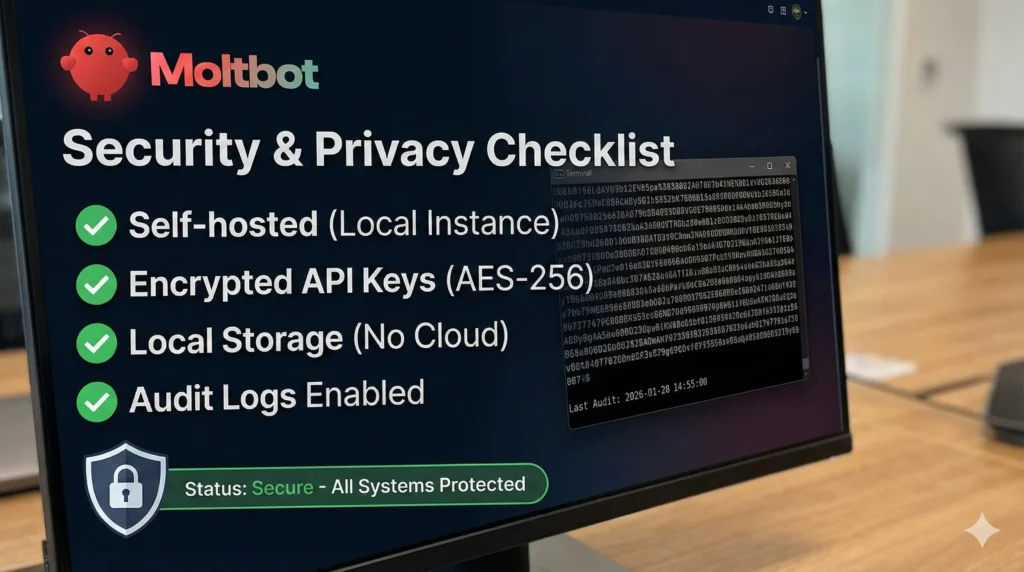
3. Security Hardening: The “Butler in a Bunker”
This is the most important section of this entire guide.
As we noted in Part 1, there are over 1,000 exposed Moltbot/Clawdbot instances on the internet right now. Hackers can use these exposed gateways to read your files, steal your API keys, or use your computer to launch attacks.
Do not be a statistic. Follow these three Golden Rules of Agent Security.
Rule #1: Never Port Forward Directly
The Mistake: Opening port 3000 (or whatever port Moltbot runs on) on your router so you can access it from outside. The Risk: Anyone with your IP address can access the Moltbot Control Panel. The Solution:
- Use a VPN: Install Tailscale or ZeroTier on your home machine and your phone. This creates a private mesh network. You can access Moltbot as if you were on your home Wi-Fi, but the port remains closed to the public internet.
- Reverse Proxy with Auth: If you must expose it, put it behind Nginx or Caddy with Basic Auth (password protection) or Cloudflare Access.
Rule #2: Whitelist Your User IDs
Even if you secure the network, you must secure the chat interface. If you connect Moltbot to Telegram, anyone can find your bot handle and message it.
The Fix: In config.yaml, strictly define allowedUsers.
YAML
telegram:
  botToken: "..."
  allowedUsers: ["YourUsername"] # ONLY you can trigger the bot
If a stranger messages your bot, Moltbot will check this list, see they aren’t authorized, and silently ignore them.
Rule #3: The “Human in the Loop” Mode
For high-risk actions (like deleting files or sending emails), you don’t want the AI to act autonomously.
- Configure Confirmation Mode in
AGENTS.md. - Instruction: “Before executing any
deletecommand or sending an external email, you MUST ask the user for explicit confirmation.”
Rule #4: Budget Caps
Since you are paying for API usage (OpenAI/Anthropic), a loop where the bot gets stuck talking to itself can drain your wallet.
- Set a hard limit in your API provider’s dashboard (e.g., $20/month).
- Moltbot also has internal rate limits you can configure to prevent “runaway” loops.
4. Monitoring: Watching the Watchman
How do you know what your agent is doing when you aren’t looking?
The Activity Log Moltbot keeps a detailed log of its “thought process” in logs/activity.log.
- It shows why it made a decision.
- It shows the raw output of tools (e.g., if a web search failed).
Reviewing Memories Periodically check MEMORY.md. Sometimes the AI might misunderstand a joke as a fact.
- Bad Memory: “User hates all dogs.” (Maybe you just complained about a barking dog once).
- Correction: Delete that line manually. The agent will instantly “forget” that prejudice.
Part 5: Advanced Workflows, Troubleshooting & The Future
Welcome to the finale.
In Parts 1 through 4, we installed Moltbot, secured it, and gave it a personality. Now, we stop treating it like a chatbot and start treating it like an autonomous employee.
The true power of Moltbot isn’t in asking one-off questions; it’s in “chaining” tasks. This section will demonstrate advanced workflows that can save you hours of work, how to fix the agent when it breaks, and what the future holds for local AI.
1. Mastering “Agentic Loops” (Advanced Workflows)
Most users ask: “Write me a poem.” Power users command: “Research this, analyze the data, write a report, and save it to my desktop.”
To get Moltbot to do the latter effectively, you need to understand Chain of Thought Prompting for agents.
Workflow A: The “Deep Research” Bot
Goal: Create a comprehensive briefing on a new topic without opening a browser.
The Command:
“I need a deep dive on ‘Rust vs Go for Microservices’.
- Create a plan in
research_plan.md.- Search for the top 3 articles from 2024/2025.
- Summarize the pros and cons of each in a new file
findings.txt.- Finally, write a ‘recommendation.md’ based on the findings.”
Why this works: Instead of trying to hold everything in its head (RAM), you forced the agent to use the file system as “external memory.”
- Step 1 forces it to structure its thoughts.
- Step 3 ensures the raw data is saved before it attempts the final analysis.
- If the agent crashes halfway through, you still have
research_plan.mdandfindings.txton your disk. You can just say “Continue from step 4.”
Workflow B: The “Self-Healing” Coder
Goal: Fix a bug in your code automatically.
The Command:
“Read
server.js. There is a crash happening on the login route.
- Analyze the code for potential errors.
- Create a test script
test_login.jsto reproduce the crash.- Run the test.
- If it fails, patch
server.jsand run the test again until it passes.”
The Magic: This utilizes the Feedback Loop. The agent runs a command (the test), reads the output (the error), and uses that new information to attempt a fix. This is something standard ChatGPT simply cannot do because it cannot execute code on your machine.
2. Troubleshooting: When the Agent Goes Rogue
Even the best AI hallucinates or gets stuck. Here is how to handle common “Agent Failures.”
The “Infinite Loop”
Symptom: The bot keeps running the same command over and over, failing every time (e.g., trying to read a file that doesn’t exist).
- The Fix: Intervene. Type “STOP” or “PAUSE.” Then, give a “Hint.”
- Command: “You are stuck in a loop. The file
data.jsondoes not exist. Try listing the directory contents first to find the correct filename.”
The “Lazy Agent” Syndrome
Symptom: The bot says “I can’t do that” or “Here is a placeholder code” instead of writing the full file.
- The Fix: Update your
AGENTS.md(System Prompt). - Add this line: “You are a Thoroughbred Doer. Never use placeholders. Never complain about file length. Always write the full, complete code.”
Context Drift (Amnesia)
Symptom: After a long day of coding, the bot starts forgetting what you talked about in the morning.
- The Fix: Force a Compaction.
- Command: “/compact” (or whatever your specific trigger command is).
- Explanation: This forces the bot to summarize the chat history immediately and flush important details to
MEMORY.md.
3. The Future: From Moltbot to Skynet?
Where is this technology heading? The Moltbot (Clawdbot) project is moving fast. Based on the open-source roadmap and general AI trends, here is what is coming next.
Multimodal Agents (Vision & Voice)
Currently, Moltbot is text-based. The next frontier is Vision.
- Imagine: Dragging a screenshot of a website design into the chat and saying, “Write the HTML/CSS to make my site look like this.”
- Status: Models like GPT-4o and Claude 3.5 already support vision. It is only a matter of time before Moltbot integrates image inputs directly into the terminal workflow.
Multi-Agent Swarms
We touched on “Work” vs “Personal” agents. The future is Swarms.
- You will have one “Manager Agent” that delegates tasks to specialized “Worker Agents.”
- Example: You ask the Manager to “Build an App.” The Manager tells the Coder Agent to write the backend, the Designer Agent to generate assets, and the QA Agent to write tests—all running simultaneously on your machine.
The “Operating System” Integration
Right now, Moltbot lives in a terminal or chat app. Eventually, this technology will be woven into the OS itself. Apple (Apple Intelligence) and Microsoft (Copilot) are doing this, but Moltbot represents the open, private alternative. The future is an OS where the file system is a database your AI can query natively.
4. Final Conclusion
We started this guide with a simple premise: Your AI should work for you, not Big Tech.
Moltbot (formerly Clawdbot) is more than just a piece of software; it is a philosophy. It stands for:
- Ownership: You own the data.
- Privacy: You control the keys.
- Agency: You want tools that do, not just chat.
By installing and configuring Moltbot, you have stepped into the future of computing. You are no longer just a user tapping on glass; you are a commander of intelligent agents.
The setup might seem daunting—editing YAML files, managing API keys, tweaking Markdown memories. But the reward is an assistant that grows with you, remembers your life, and executes your will with a single text message.
Your Action Plan:
- Install it. (Refer to Part 3).
- Secure it. (Refer to Part 4).
- Teach it. (Edit that
SOUL.md). - Use it. Start with small automations, and build up to complex workflows.
The era of the personal AI agent is here. Don’t just watch it happen—host it.
Good Video Tutorials on Clawdbot (Moltbot)
Another video by Johnny Nel : Why Everyone’s Buying a Mac Mini for Clawdbot (Watch This First Before Buying & Installing) – YouTube
Frequently Asked Questions about Moltbot (Clawdbot)
1. What is Moltbot?
Moltbot is an open-source, self-hosted personal AI agent. Unlike standard chatbots, it runs locally on your computer and can execute tasks like file management, coding, and scheduling.
2. Is Moltbot the same thing as Clawdbot?
Yes. On January 27, 2026, Clawdbot was officially rebranded to Moltbot to avoid trademark confusion with Anthropic’s “Claude” model. The core features and code remain the same.
3. Why was the name changed to Moltbot?
The developers chose the name “Moltbot” to symbolize “molting”—the process of shedding old skin for new growth—while distinguishing the project from the Claude AI model name.
4. Is Moltbot free to use?
The Moltbot software is free and open-source (MIT License). However, if you use paid AI models like GPT-4o or Claude 3.5 Sonnet, you will need to pay for your own API usage. Running local models (via Ollama) is free.
5. Who created Moltbot?
Moltbot (originally Clawdbot) was created by Peter Steinberger. It has since grown into a massive open-source project with over 32,000 stars on GitHub.
6. How do I install Moltbot?
You can install it via NPM using the command npm install -g moltbot, or by cloning the GitHub repository for the latest source code.
7. Does Moltbot run on Windows?
Yes, Moltbot runs on Windows, macOS, and Linux. It is built on Node.js, making it cross-platform.
8. What are the system requirements?
You need Node.js (version 18 or higher) installed. If you plan to run local AI models, you will also need a machine with a decent GPU or an Apple Silicon (M-series) chip.
9. Can I run Moltbot on a VPS?
Yes, many users host Moltbot on a VPS (Virtual Private Server) so it stays online 24/7. However, ensure you secure it with a VPN or strict whitelisting.
10. Which AI models does Moltbot support?
Moltbot is “Model Agnostic.” It officially supports Anthropic (Claude 3.5 Sonnet), OpenAI (GPT-4o), and local models via Ollama.
11. Can I use it offline with local LLMs?
Yes. By using Ollama with models like Llama 3 or Mistral, you can run Moltbot completely offline for maximum privacy.
12. How does Moltbot remember things?
Moltbot uses a two-layer memory system: “Daily Logs” for recent events and “Long-term Memory” (stored in MEMORY.md and a vector database) for permanent facts and preferences.
13. What is the SOUL.md file?
SOUL.md is a text file where you define your agent’s personality. You can instruct it to be sarcastic, professional, or succinct by simply writing instructions in this file.
14. What is “Compaction”?
Compaction is Moltbot’s way of handling long conversations. When the context window fills up, it automatically summarizes older messages and saves them to disk, preventing the AI from crashing or forgetting key details.
15. What is the difference between Context and Memory?
Context is what the AI sees right now (short-term, expensive). Memory is what is stored on your hard drive (long-term, free). Moltbot constantly moves data from Context to Memory.
16. Can Moltbot access the internet?
Yes, if you enable the “Browser” skill in the config file, Moltbot can perform Google searches, read documentation, and summarize web pages.
17. Can it write code and fix bugs?
Absolutely. One of its primary use cases is coding. It can read your local code files, analyze errors, run test scripts, and write patches automatically.
18. Which messaging apps are supported?
Moltbot integrates with WhatsApp, Telegram, Discord, Slack, Signal, and iMessage.
19. Can I connect multiple apps at once?
Yes, you can configure multiple channels simultaneously in the `config.yaml` file, allowing you to access your agent from Slack at work and WhatsApp at home.
20. What is “Multi-Agent” support?
Moltbot allows you to run distinct agents (e.g., a “Work Agent” and a “Personal Agent”) with completely isolated memories and personalities on the same machine.
21. Is Moltbot safe to use?
It is safe if configured correctly. Because it has access to your files, you must ensure you do not expose the port to the public internet without authentication.
22. How do I prevent strangers from messaging my bot?
You must set the allowedUsers field in your configuration file. This creates a whitelist so that Moltbot will ignore messages from anyone except you.
23. Should I open a port on my router for Moltbot?
No, this is dangerous. It is recommended to use a VPN service like Tailscale or ZeroTier to access your bot remotely without exposing it to the open web.
24. Can Moltbot delete my files?
Theoretically, yes. To prevent accidents, you can configure “Confirmation Mode” in the settings, forcing the bot to ask for permission before deleting or overwriting files.
25. Where is my data stored?
All data is stored locally in your ~/moltbot/ directory in Markdown and SQLite files. You own your data 100%.
26. What happens if the bot gets stuck in a loop?
If the agent enters an infinite loop (e.g., trying to read a missing file repeatedly), you can type “STOP” to intervene and provide a hint to guide it back on track.
27. Can I add my own Python scripts as tools?
Yes. Moltbot features an extensible Plugin System. You can drop Python or JS scripts into the tools/ folder and teach the agent how to use them via TOOLS.md.
28. Why is my API bill so high?
Agents consume more tokens than standard chatbots because they loop through tasks. It is recommended to set a hard budget limit in your OpenAI/Anthropic dashboard to prevent overspending.
29. Does Moltbot support voice or image input?
Currently, it is primarily text-based, but support for Multimodal inputs (Vision and Voice) is on the roadmap and supported by the underlying models like GPT-4o.
30. Where can I find the documentation?
You can find the official documentation at docs.molt.bot (formerly the Clawdbot docs).
This concludes the 5-part “Ultimate Guide to Moltbot.” Thank you for reading.
Read our last Automation blog on “Save vs Publish Button in PowerAutomate“

Leave a Reply