
The Frustrating Scenario
You’ve spent the last hour tweaking a Desktop Flow. You fixed a selector, added a new variable, and optimized the logic. You hit the Save icon (the floppy disk) just like you have a thousand times before. You run the flow to test it… and it runs the old version.
You try again. You hit Save again. Still the old version.
If this is happening to you, don’t panic. You are just the victim of a subtle but massive change in the Power Automate Desktop Application.
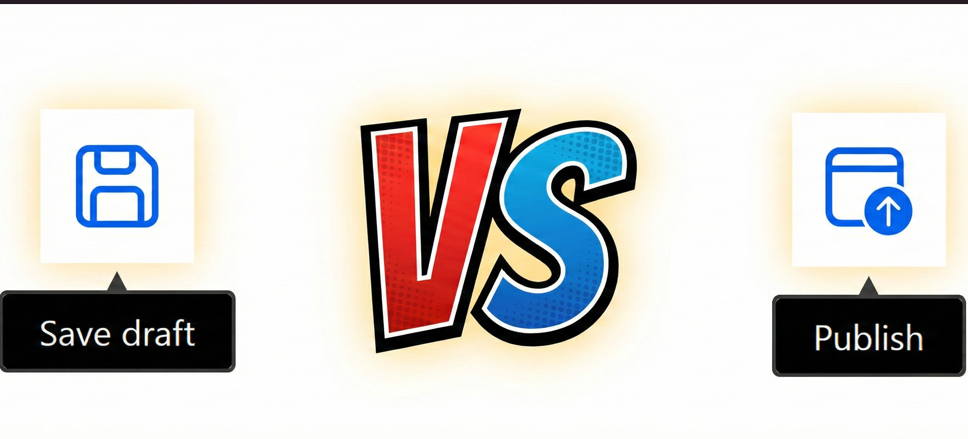
The Change: “Save” is Now “Save Draft”
Microsoft recently pushed an update to Power Automate Desktop that splits the saving process into two distinct actions.
In the past, clicking the Floppy Disk icon did two things simultaneously:
- It saved your work.
- It made that version “Live” (ready to run).
That is no longer the case.
Now, when you click the Floppy Disk icon, you are only Saving a Draft.
- What this means: Your changes are safe in the cloud, but they are not the version that will run if you trigger the flow from the console or a cloud flow.
- The result: You can save a draft 50 times, but the “Live” version of the flow will remain unchanged until you take the next step.
The Solution: You Must Click “Publish”
To make your changes effective, look at the toolbar at the top of your designer. You will see a new icon next to the save button—a document with an Up Arrow.
This is the Publish button.
The New Workflow:
- Make your edits.
- Click Save (Floppy Disk): This saves your progress as a “Draft.” Use this frequently while working to prevent data loss.
- Click Publish (Up Arrow): This takes your current Draft and pushes it to “Production.”
Only after clicking “Publish” will your flow actually execute the new changes.

Why Did Microsoft Do This?
While it’s annoying if you aren’t expecting it, this is actually a great feature for developers. It introduces the concept of Version Control to Desktop flows.
Previously, if you were editing a live bot and saved a half-finished change, the bot would break if it ran at that moment. Now, you can safely work on “Drafts” of a bot without breaking the currently running “Published” version. You only “Publish” when you are 100% sure the new code is ready.
Summary for Troubleshooting
If your Power Automate Desktop flow is not working after an edit, check the following:
- Look at the top menu bar.
- Is the Publish button blue (active)?
- If yes, it means you have unsaved changes in a Draft state. Click Publish.
FAQ’s Related to Flow not saving in Power Automate
In Power Automate Desktop My Saves are Not Getting Reflected?
What is the difference between “Save” and “Publish” in Power Automate?
Where is the Publish button in Power Automate Desktop?
My Power Automate changes are not updating in the console. Is this a bug
Can I undo changes or go back to a previous version in Power Automate Desktop?
Do I have to click Publish every time I make a small change?
What does the “Document with an Up Arrow” icon mean in Power Automate?
For more such articles bookmark our website Buzzbaba.com

Leave a Reply